
CaptureEvery Detail.
Professional Screen Recording. Built for Quality.
Take control of your screen recordings with precise capture settings, flexible audio options, and a clean experience designed around the quality your Android device can deliver.
Coming to Google Play
Quality
Your Device. Your Best Capture.
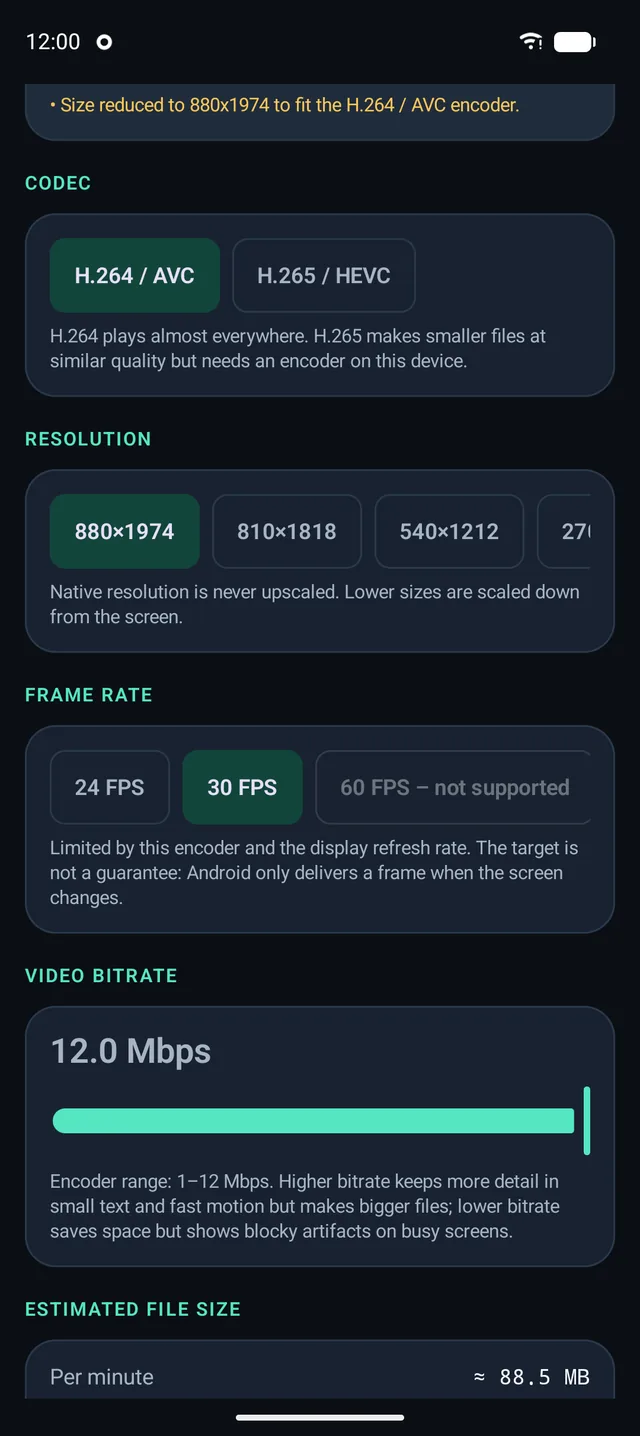
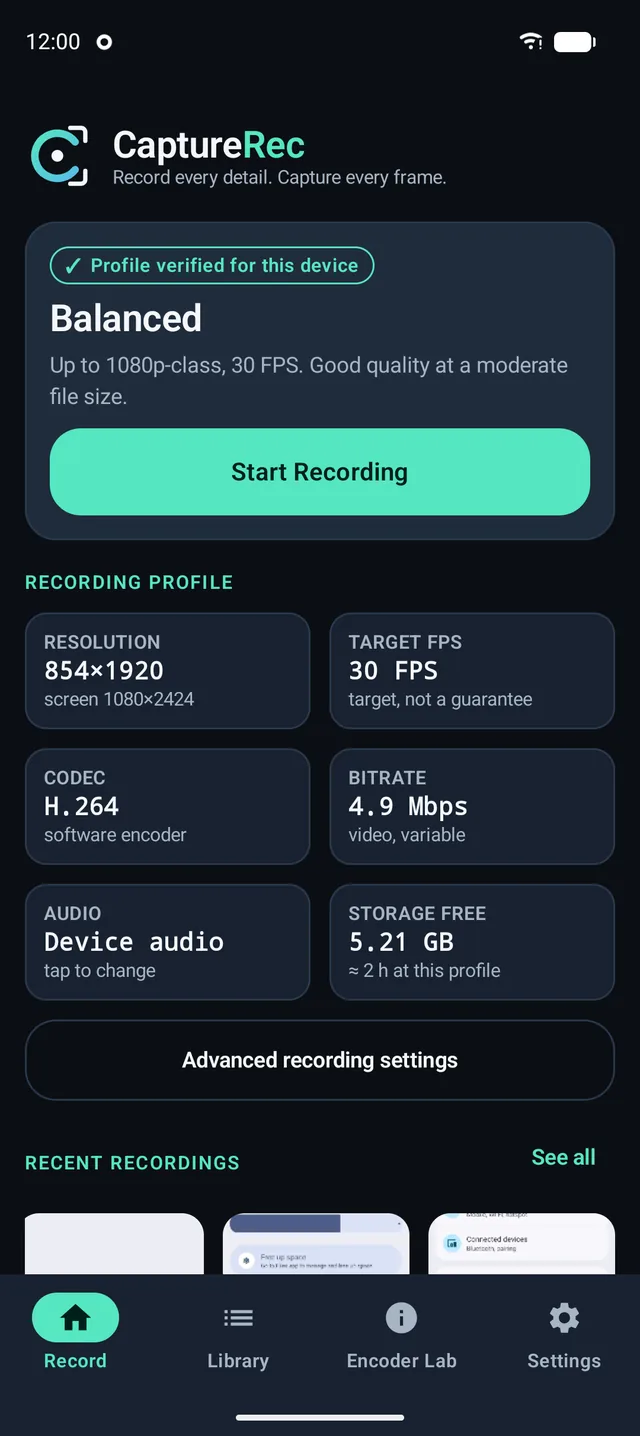
CaptureRec aims for the best recording your device can actually deliver. It reads what your phone's video encoder reports, offers settings inside those limits, and says so plainly when something is unavailable.
- Resolution
- Match the screen or scale down. Nothing is upscaled, and sizes the encoder can't handle are disabled.
- Frame rate
- Choose from the rates your encoder and display support. It is a target, not a guarantee.
- Bitrate
- Set video bitrate within the encoder's range, with an estimated file size to weigh quality against storage.
- Codec
- H.264 for compatibility, and H.265 (HEVC) when your device has an encoder for it.
- Audio
- Device audio, microphone or both, encoded as AAC in the same MP4.
- Output
- MP4 files that are verified as playable before they appear in your library. Recorded in SDR.
Supported configurations vary by device and Android version. CaptureRec does not promise 4K, 120 FPS, HDR or any particular codec on every phone.
Claims are separated from proof
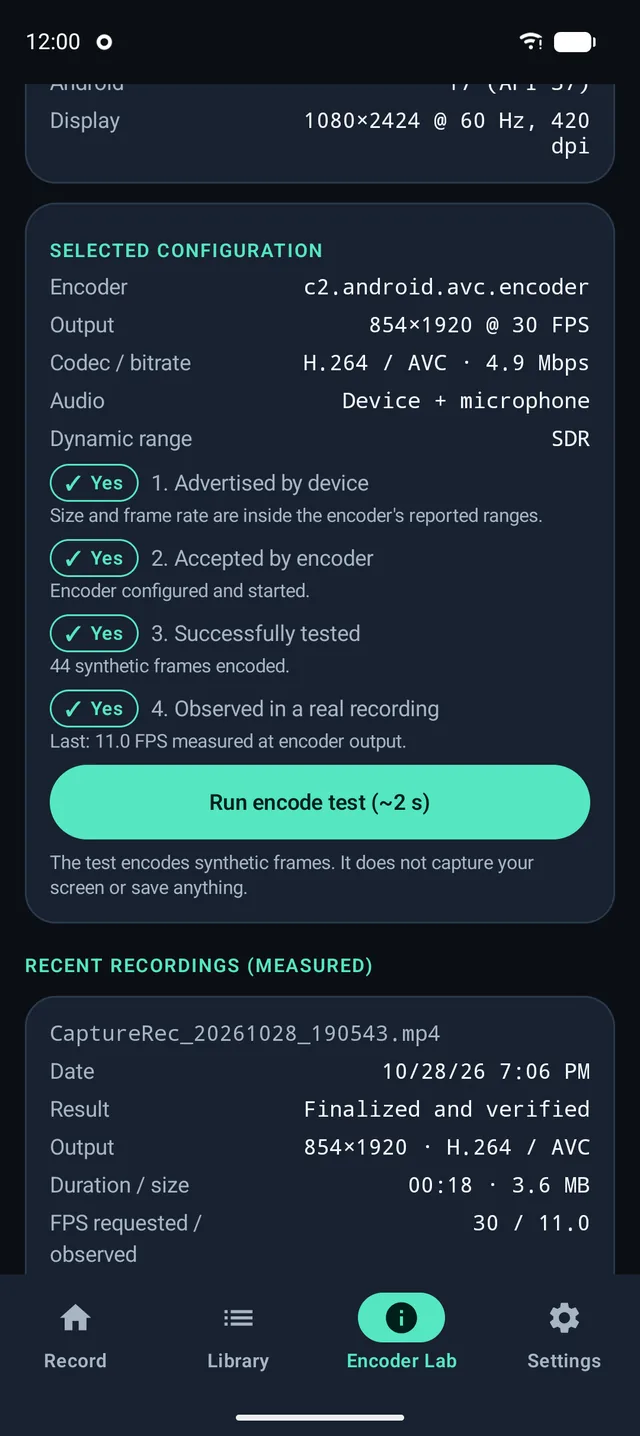
Advertised by the device
What the encoder says it supports: size, frame-rate and bitrate ranges.
Accepted by the encoder
The exact configuration is opened on the encoder and started.
Tested with a real encode
A short synthetic encode runs without capturing your screen or saving anything.
Observed in a real recording
Measured results from your own finished recordings.
Gameplay
Every Game. Every Moment.
Capture gameplay, tutorials, and unforgettable moments with recording settings tailored to your device.
- Settings built around your devicePick a profile, or set resolution, frame rate and bitrate yourself. CaptureRec only offers what your encoder reports it can do.
- Always know what is recordingResolution, frame rate, codec and bitrate stay visible, with a live timer and Android's own capture indicator.
- Sound, where Android allowsRecord device audio, the microphone, or both. Some games opt out of audio capture, and protected content can't be recorded.
- Control without leaving the gamePause, resume, stop and screenshot from the recording notification or the floating toolbar.
Recording performance depends on your device, the game's workload, your Android version and the encoder configuration. CaptureRec shows the frame rate it measures; it cannot promise zero dropped frames.
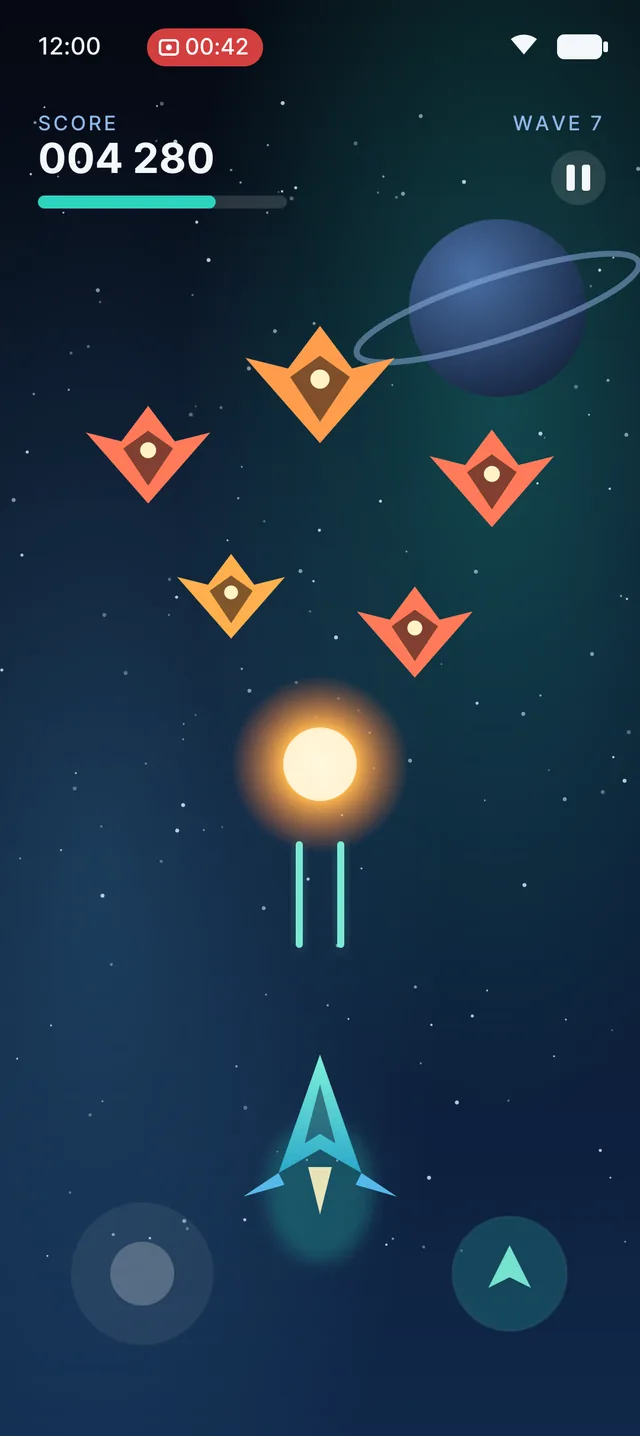
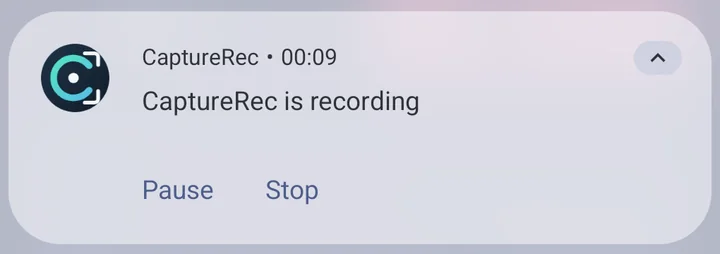
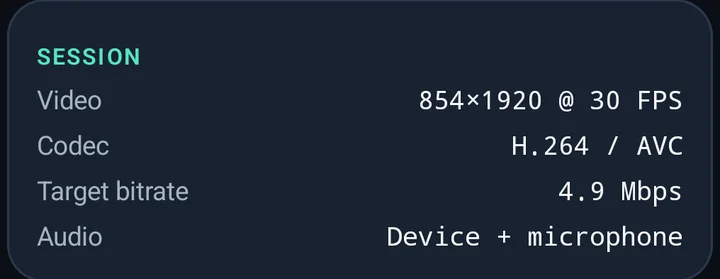
The game scene is original illustrative artwork, not real footage. The two CaptureRec cards are real app screens, captured on an Android emulator.
Floating toolbar
One Floating Toolbar. Every Capture.
A draggable bubble that opens into Start, Pause, Stop, Screenshot and Facecam, over any app or game.
- Collapsed or expandedTap the bubble to open the toolbar; it shows the timer while you record, snaps to a screen edge, and has buttons for Pause, Stop, Screenshot, Draw and Facecam.
- Always reachableIt stays inside the usable screen area, away from system bars, and remembers where you left it.
- Off until you want itIt needs Android's "Display over other apps" permission, which CaptureRec asks for only when you turn the toolbar on.
- Android stays in chargeStarting from the toolbar still shows Android's screen-capture prompt every time.
The expanded toolbar is a window on your screen, so it can appear in a recording. Collapse it to the small bubble while you record. Some phones restrict overlays.
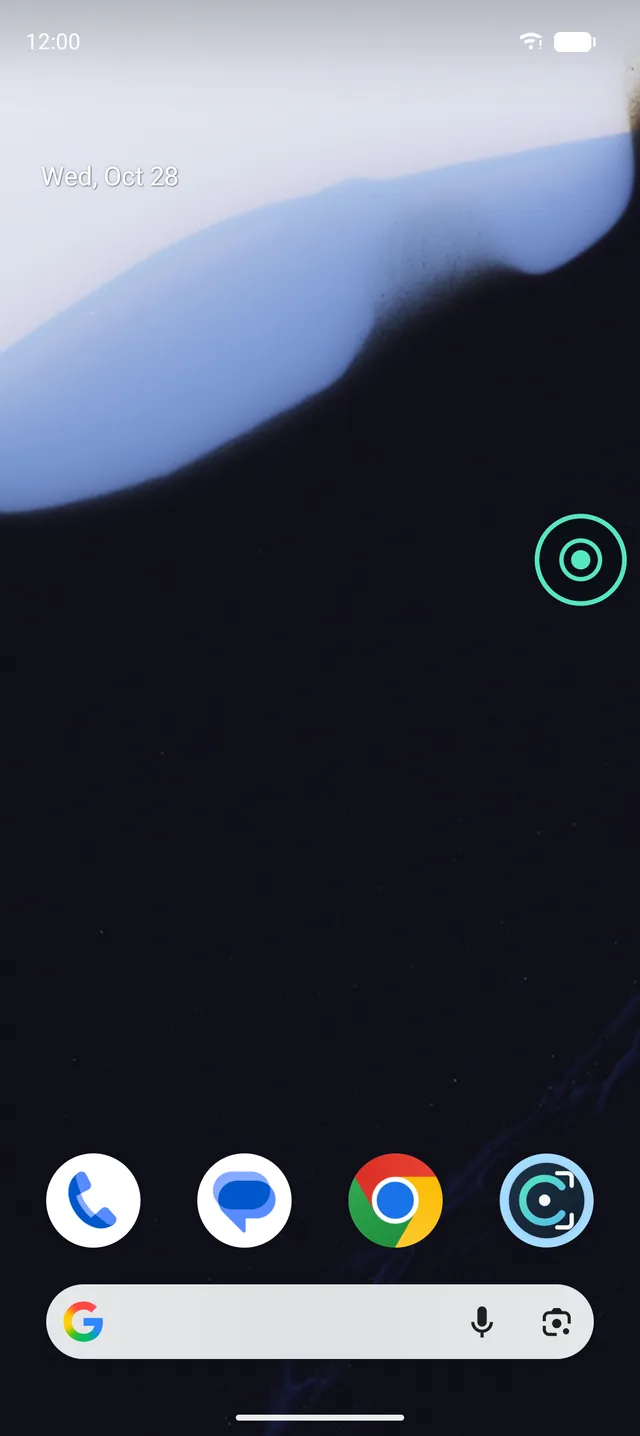
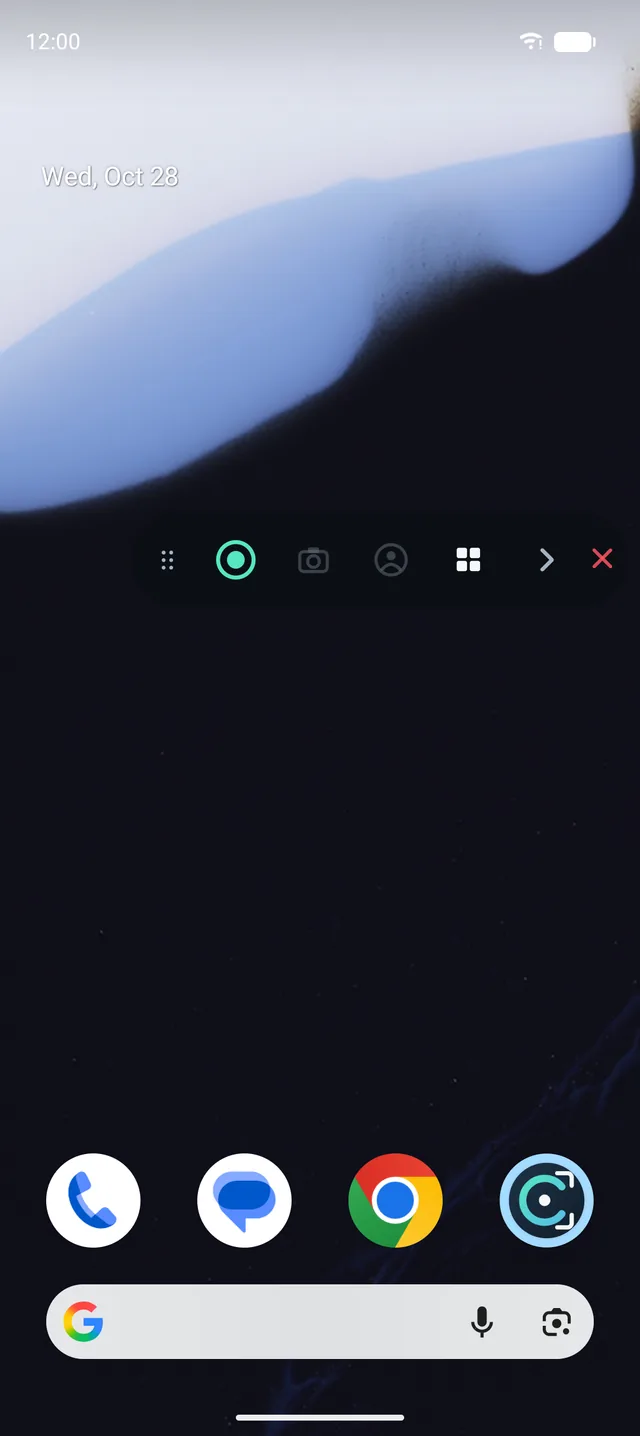
Real CaptureRec screens, captured on an Android emulator.
Screenshots
Screenshot Without Leaving the Game.
Tap the camera button in the toolbar, the notification, or the app. The image is saved straight to your device.
- Real pixels, saved as PNGThe current screen at the recording's resolution, saved as PNG in Pictures/CaptureRec.
- Instant feedbackA small confirmation appears; tap it to open the image. Repeated taps never create duplicates.
- Stays on your deviceScreenshots live in your library beside your videos.
Screenshots work while a recording is running, because they use the screen capture you approved. Protected content cannot be captured.
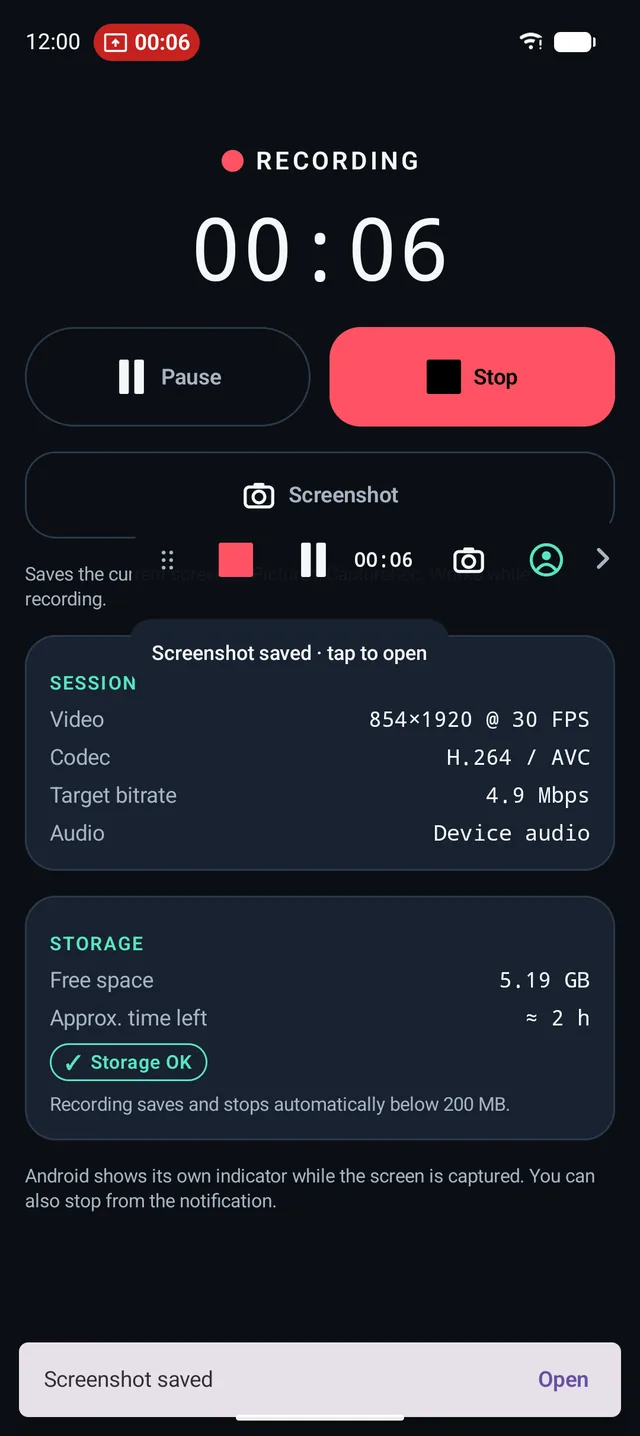
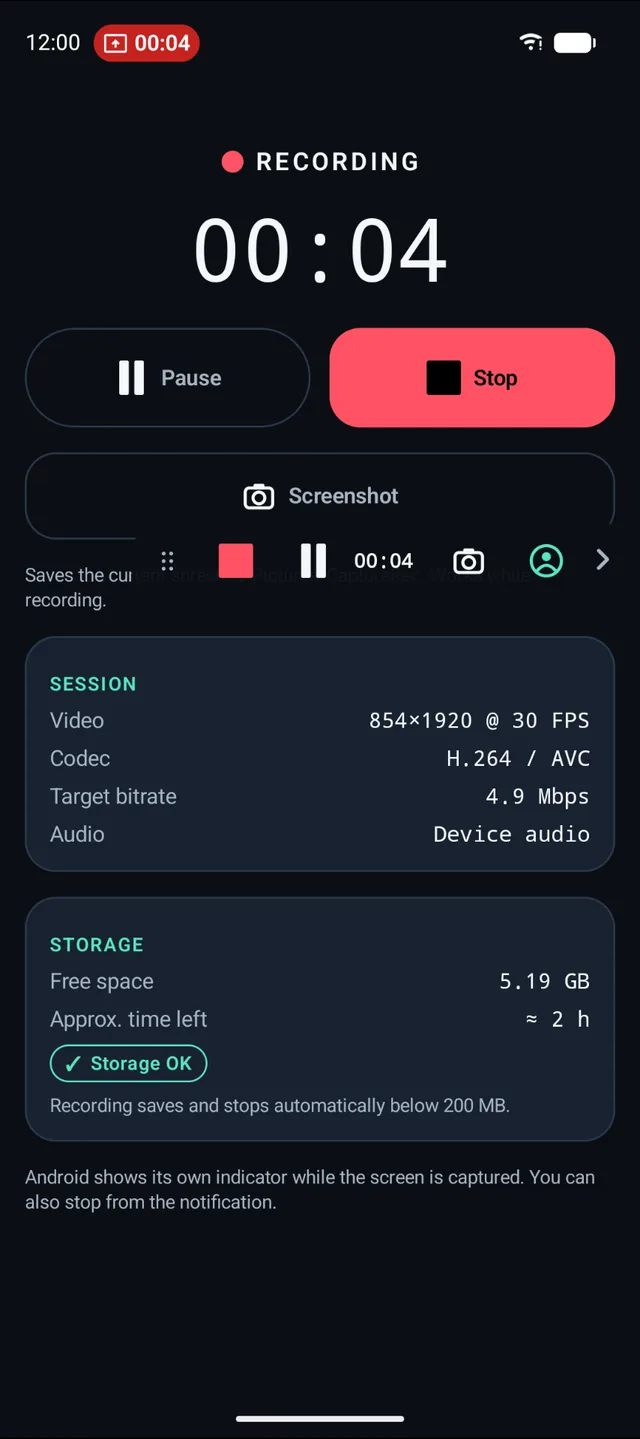
Real CaptureRec screens, captured on an Android emulator. Right: the saved PNG.
Live drawing
Draw On Your Recording. Live.
Open the drawing tools from the toolbar, circle what matters, and the marks are part of the video.
- Seven toolsPen, highlighter, arrow, line, rectangle, ellipse and eraser, with undo, redo and clear, plus colour, stroke width and opacity.
- Draw, or use the app underneathSwitch drawing off without stopping the recording, and your touches pass straight through to the app or game.
- In the exported videoAnnotations are rendered into the recording by CaptureRec itself, not just shown on screen. We read the pixels back from the exported file to confirm it.
The toolbar and drawing bar are windows on your screen, so some phones also record them. Pause the recording while you adjust tools: paused time is cut from the video. Drawing needs "Display over other apps", asked only when you turn it on.
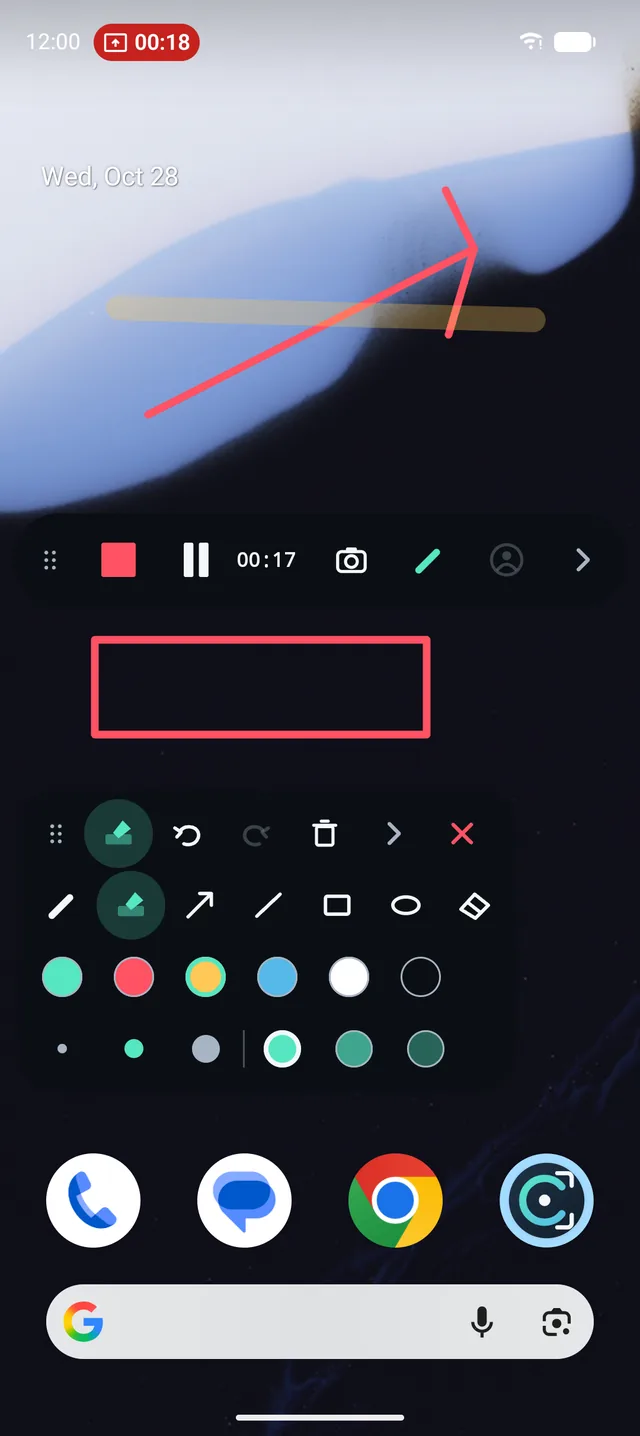
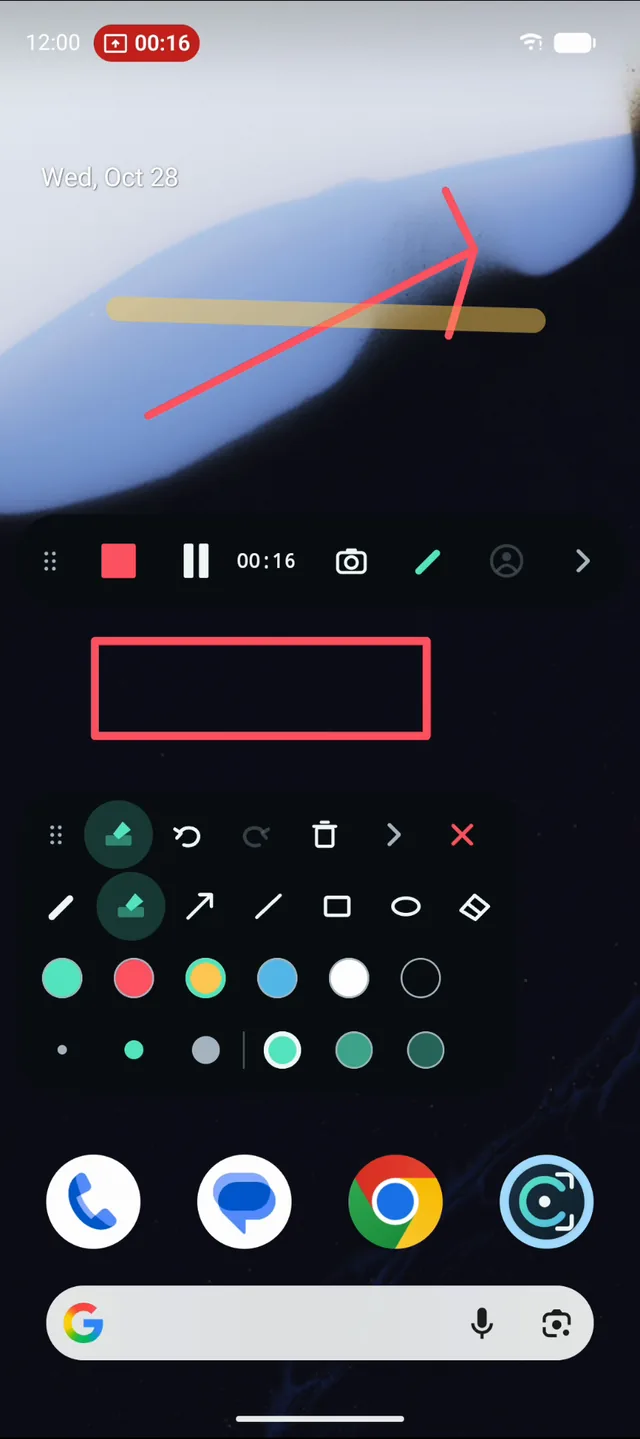
Real CaptureRec screens, captured on an Android emulator. Left: while drawing. Right: a frame decoded from the exported MP4.
Facecam
Your Gameplay. Your Face. One Video.
Your camera is composited into the recording itself, so it is in the exported file, not just on your screen.
- Your frame, your wayCircle or rounded rectangle, front or rear camera, three sizes, corner presets, and a live preview with the real crop and mirroring.
- No stretchingThe camera image is cropped to the frame, never distorted.
- Asked only when you opt inCamera permission is requested when you turn Facecam on, with a plain explanation first.
- Keeps recording if the camera dropsIf the camera becomes unavailable, the recording continues without it and tells you.
Whether a camera can run while another app is in front depends on your phone and Android version. Facecam needs the graphics compositor, which is not available on every device.
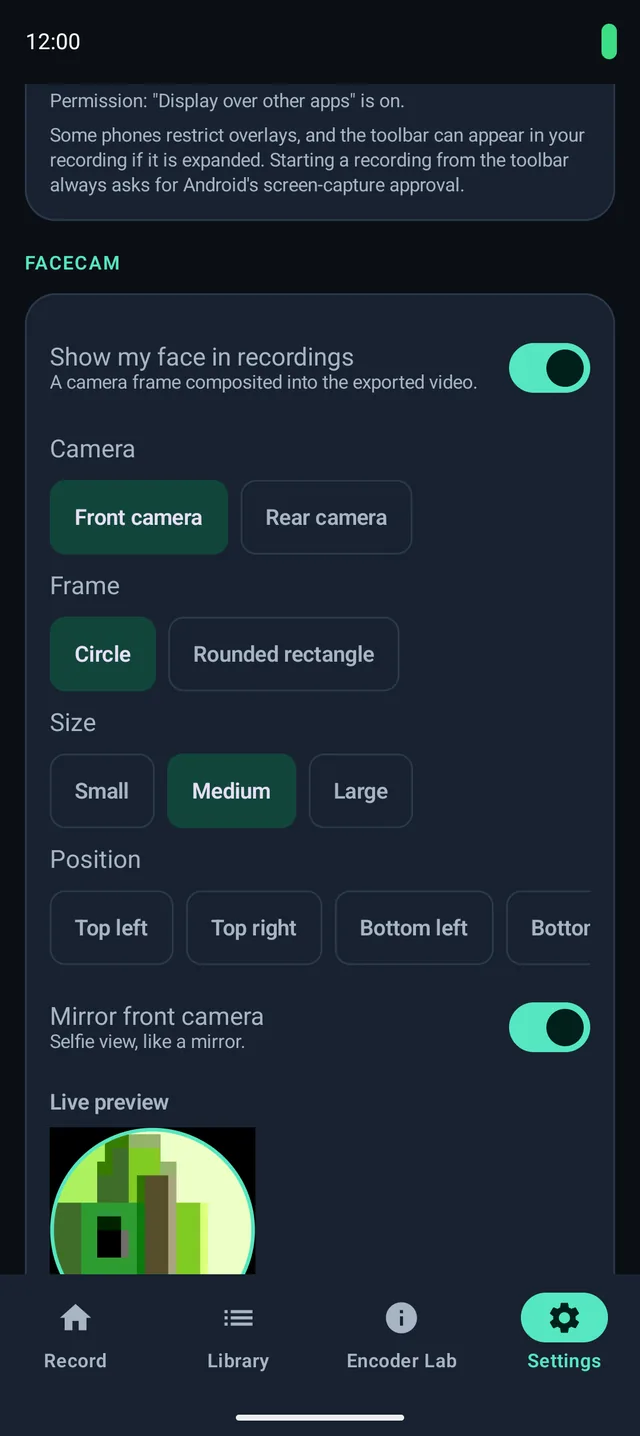
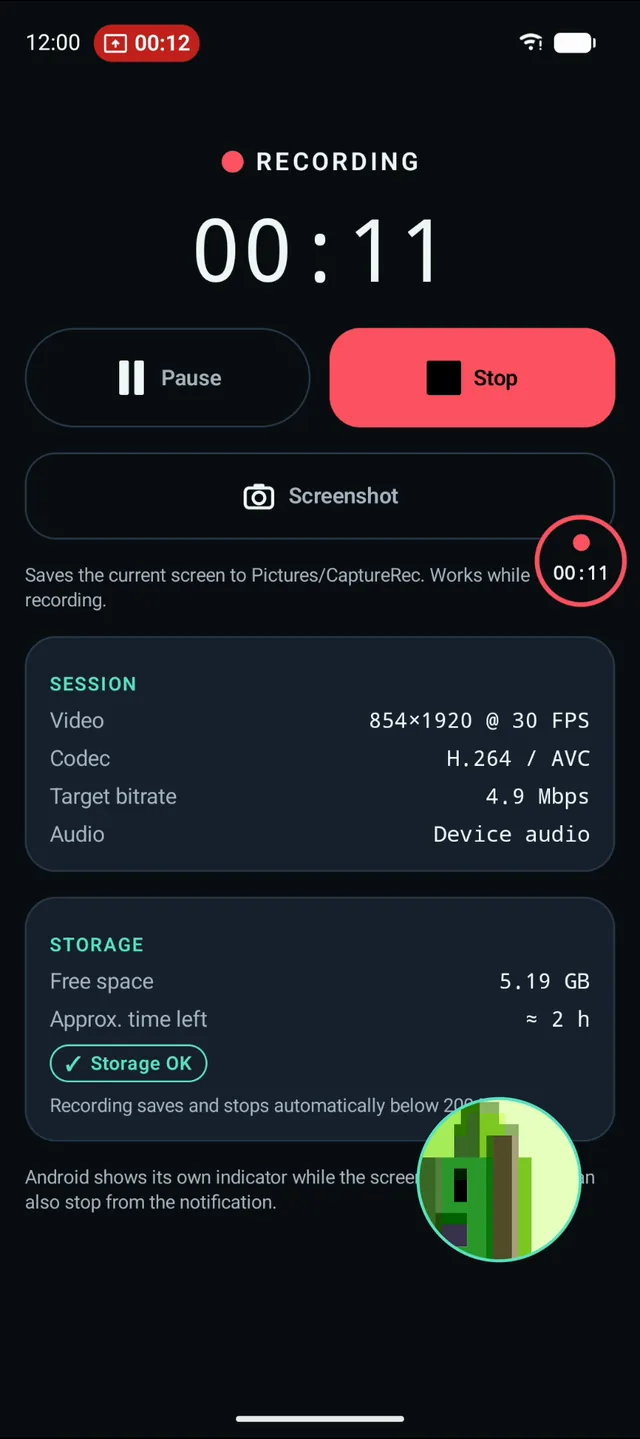
Real CaptureRec screens, captured on an Android emulator. Right: a frame decoded from the exported MP4. The emulator's camera is a test pattern, not a person.
Video Studio
Edit It Right on Your Phone.
A video editor made for screen recordings: trim, split and join, crop and rotate, change speed, add text and audio, then export a new copy. Everything runs on your device.
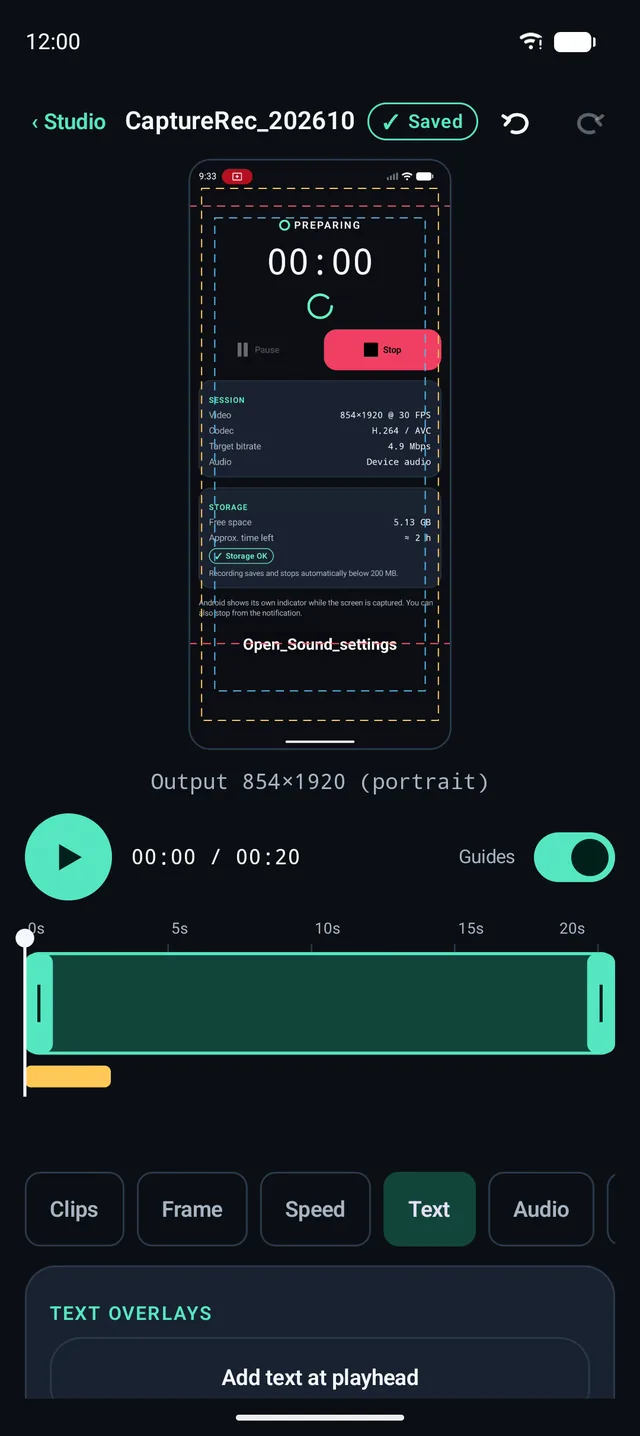
A real timeline
Trim handles, a playhead, split, delete and join, with unlimited undo and redo. Projects save automatically.
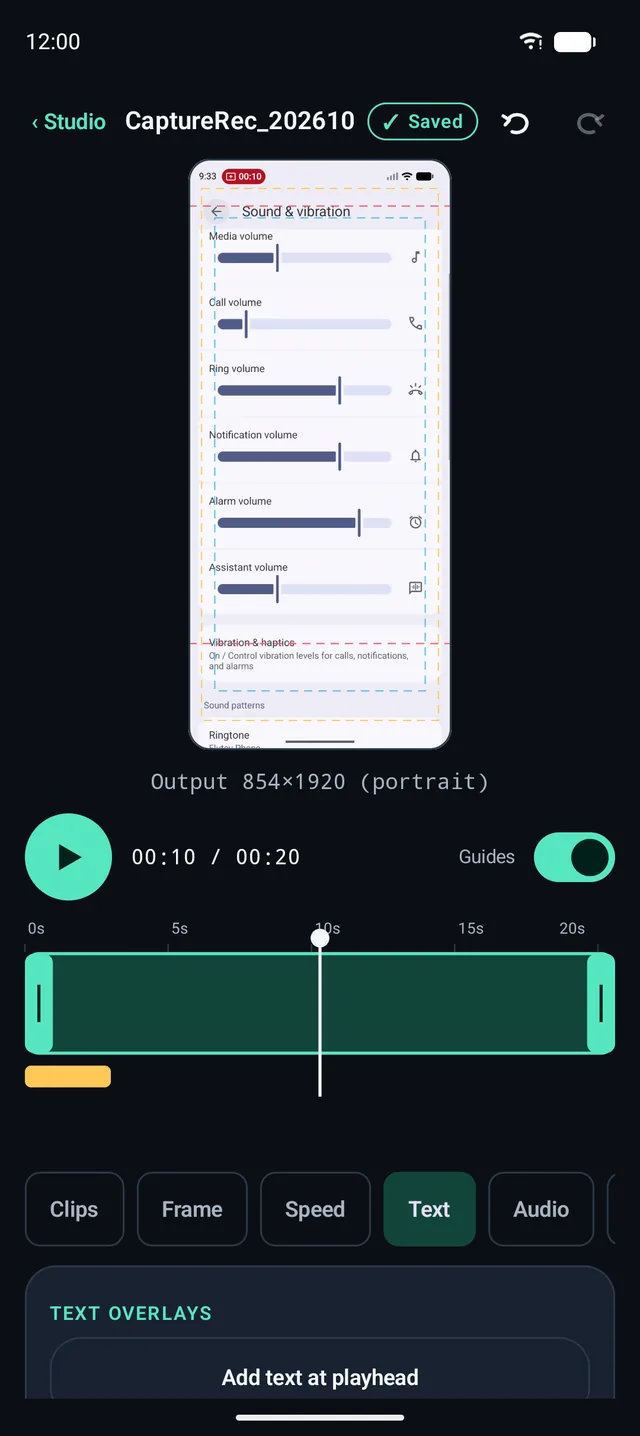
Text, speed and audio
Titles with timing, 0.5× to 2× speed per clip, mute or re-balance the recording audio, and mix in a song from your files.
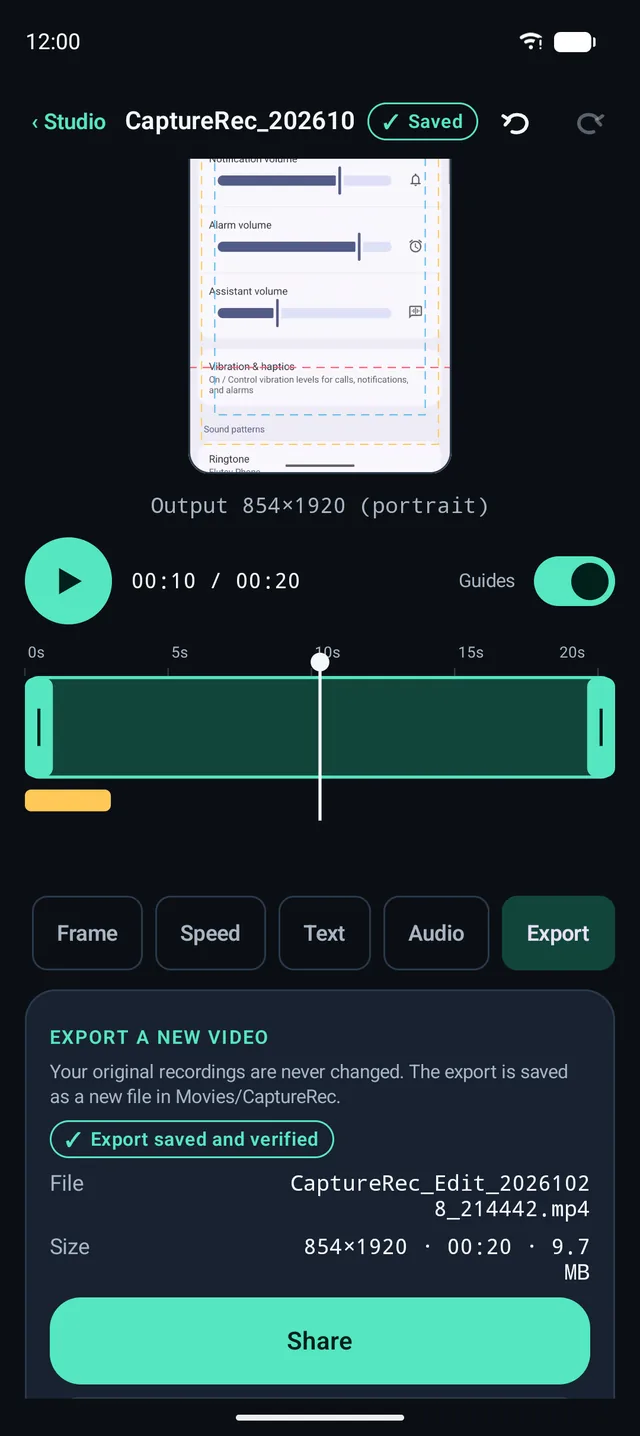
Export a new copy
Resolutions are the ones your device's encoder reports, never upscaled. Progress, cancel, and a check that the file plays before it is saved.
Real CaptureRec screens, captured on an Android emulator.
Your originals stay untouched
Edits are saved as a small project file that points at your videos. Exports are separate files in Movies/CaptureRec.
Crop, rotate, canvas
Original, 16:9, 9:16 or 1:1 canvas with fit or fill, and safe-area guides for vertical and landscape formats.
Honest limits
Frame rate follows the source, and speed uses time-stretched audio. Export keeps running only while the app is open.
Workflow
Record. Annotate. Edit. Export.
One app from the first tap to the finished video, with no account and no upload step.
Record
Start from the app or the floating toolbar and approve Android's capture prompt.
Annotate
Take screenshots, draw arrows and highlights, or show your Facecam while you record.
Edit
Open the recording in Video Studio from your library: trim, crop, add text and audio.
Export
Save a new copy at a resolution your device supports. Your original stays as recorded.
Share
Send it with Android's standard share sheet.
Use cases
Made for Gameplay, Tutorials and Walkthroughs.
- Gameplay
- Quality settings built around your device, a toolbar that stays out of the way, and a Facecam for commentary.
- Tutorials
- Record device audio and microphone together, pause between steps, and grab screenshots of key moments.
- Walkthroughs
- Show an app flow with clear status, then find, play and share the result from the library.
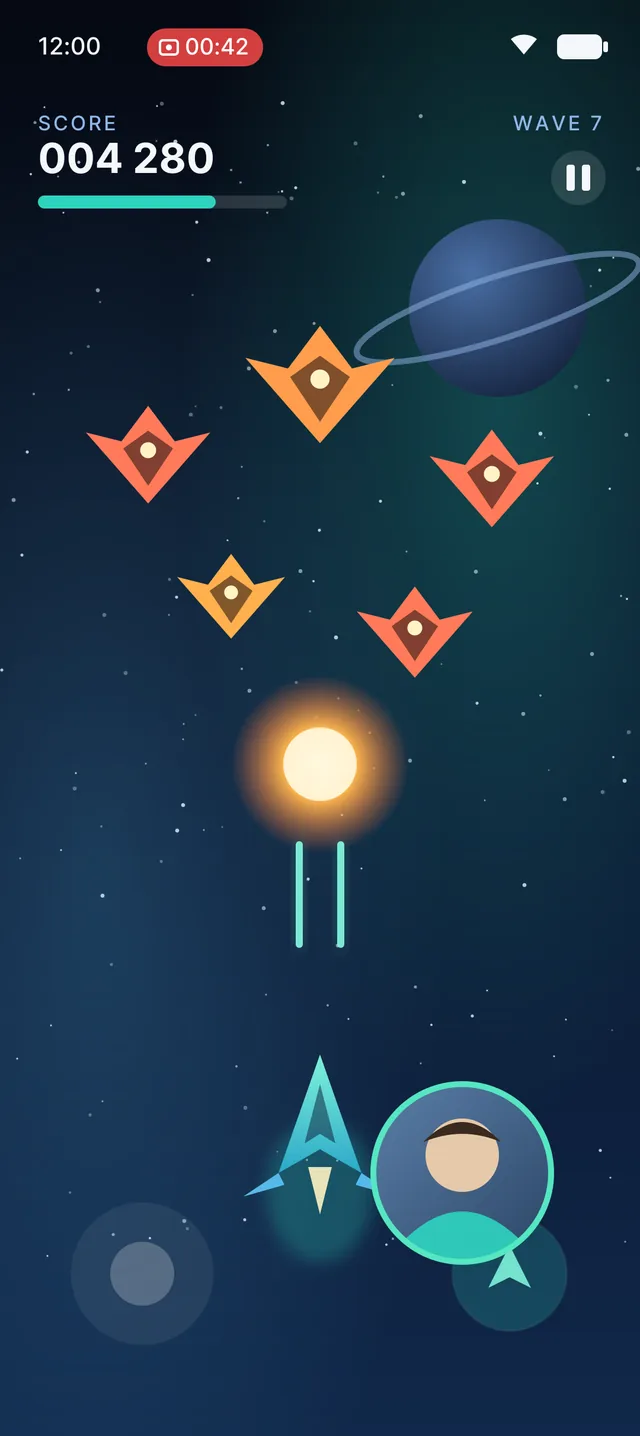
Illustration. Original artwork, not a screenshot of the app.
Features
Professional Control. Without the Clutter.
Pick a quality profile and record, or open the technical controls when you want them. Every option is checked against your device first.
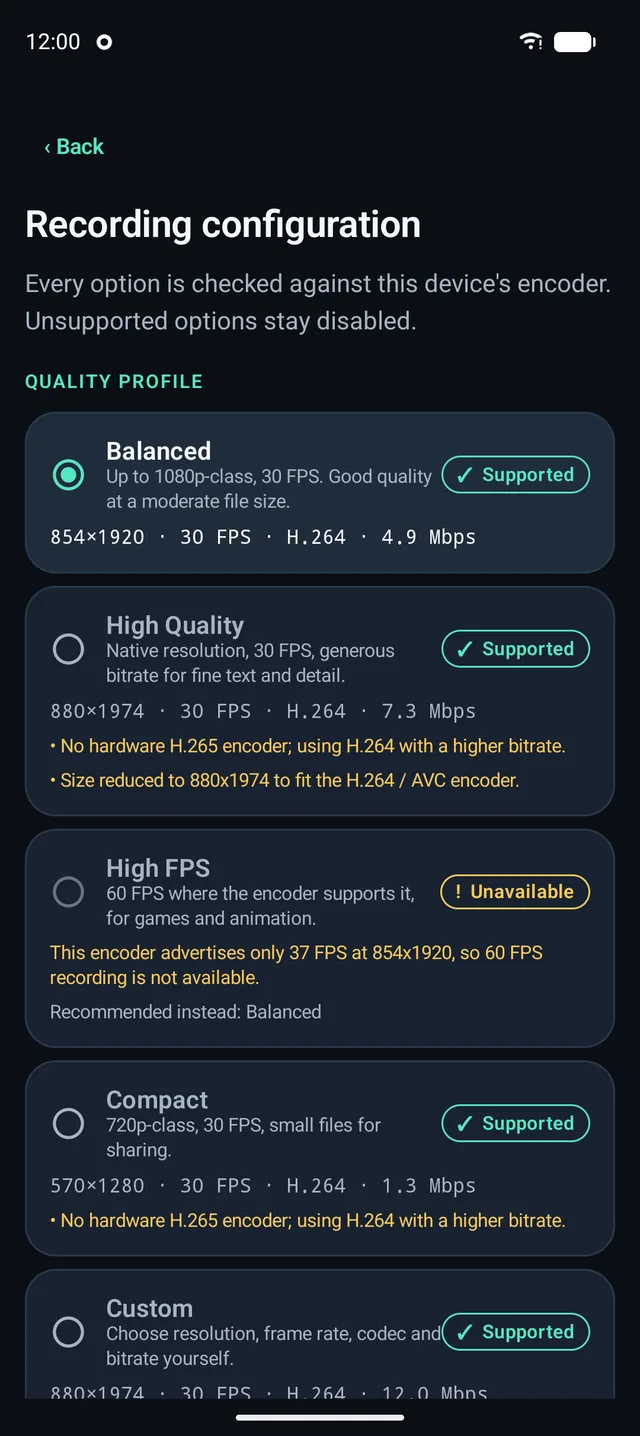
Quality profiles
Balanced, High Quality, High FPS, Compact or Custom. A profile that your device cannot do is marked Unavailable, with the reason and a recommended alternative.
Custom settings
Set codec, resolution, frame rate and bitrate yourself. Values outside your encoder's reported range stay disabled, and an estimated file size is shown.
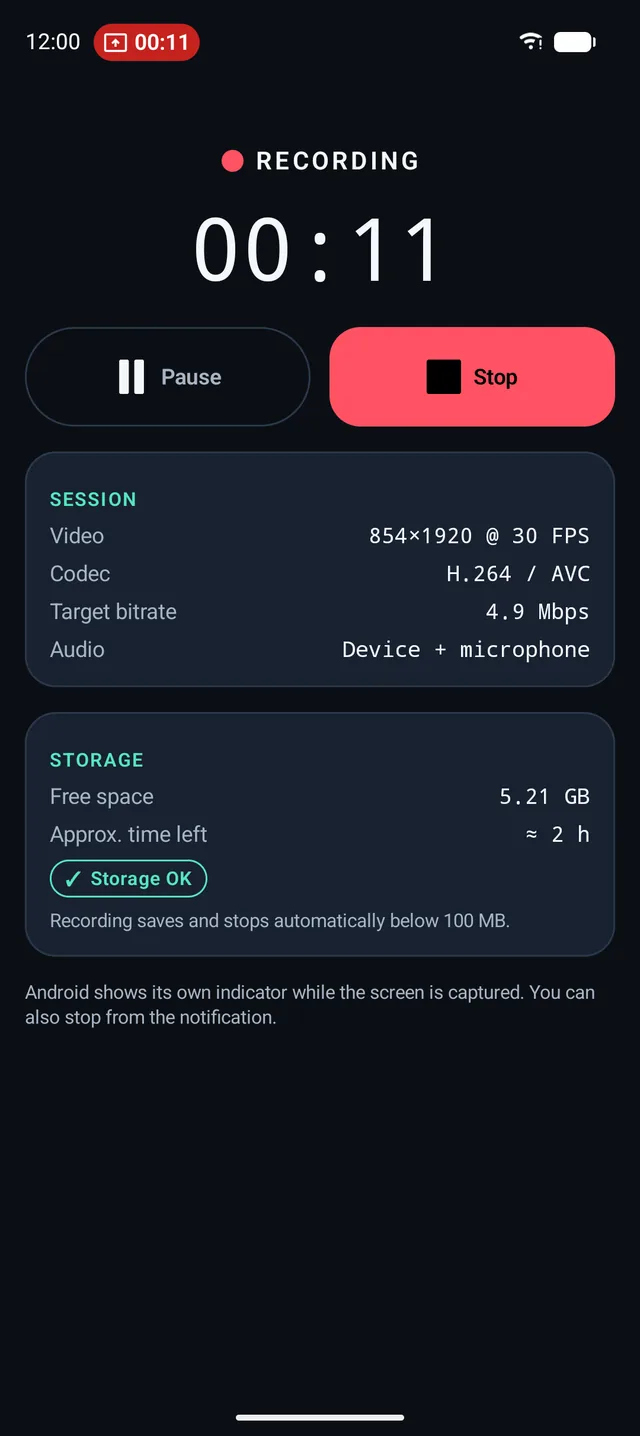
Clear recording controls
A readable status, timer, large Pause/Resume and Stop buttons, and the same controls in the notification while you record.
App screens shown were captured on an Android emulator. The options you see depend on your device.
Encoder Lab
See which encoders your device reports and which settings have been tested or observed.
Local library
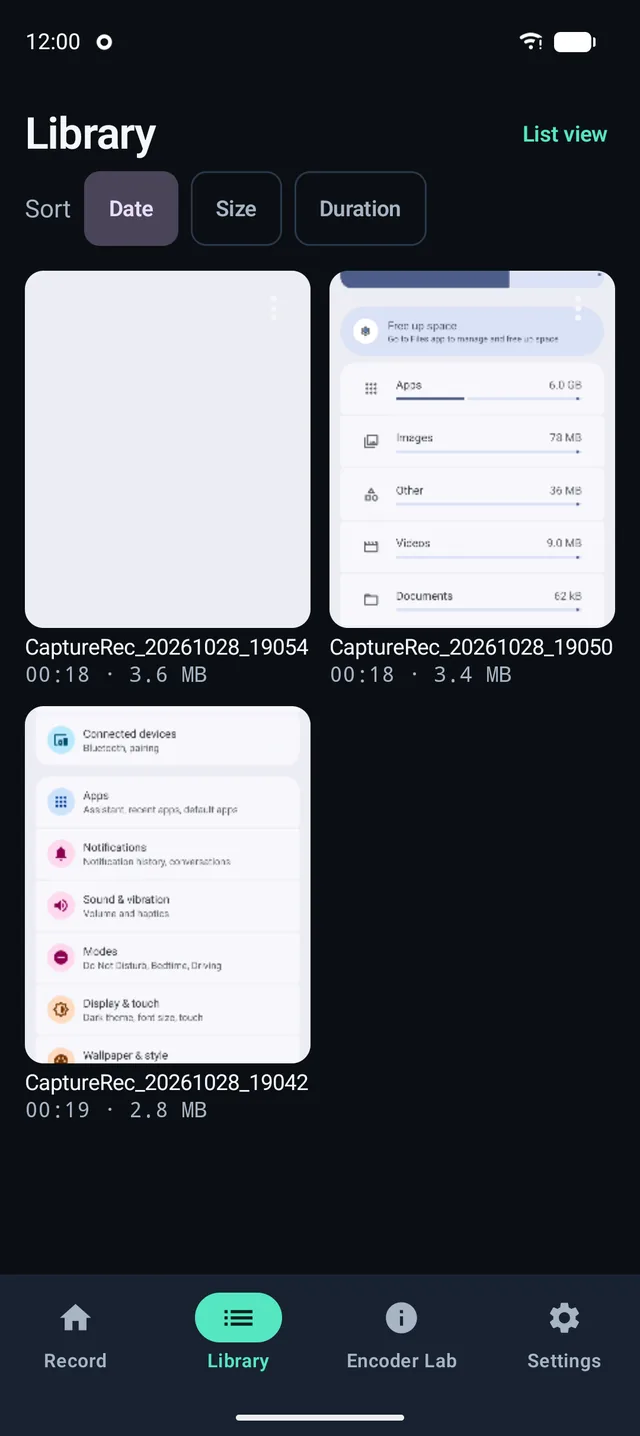
Browse, play, rename, share and delete your recordings, in grid or list view.
Dark and light themes
Dark by default, with light and system-following options.
Audio
Every Sound Matters.
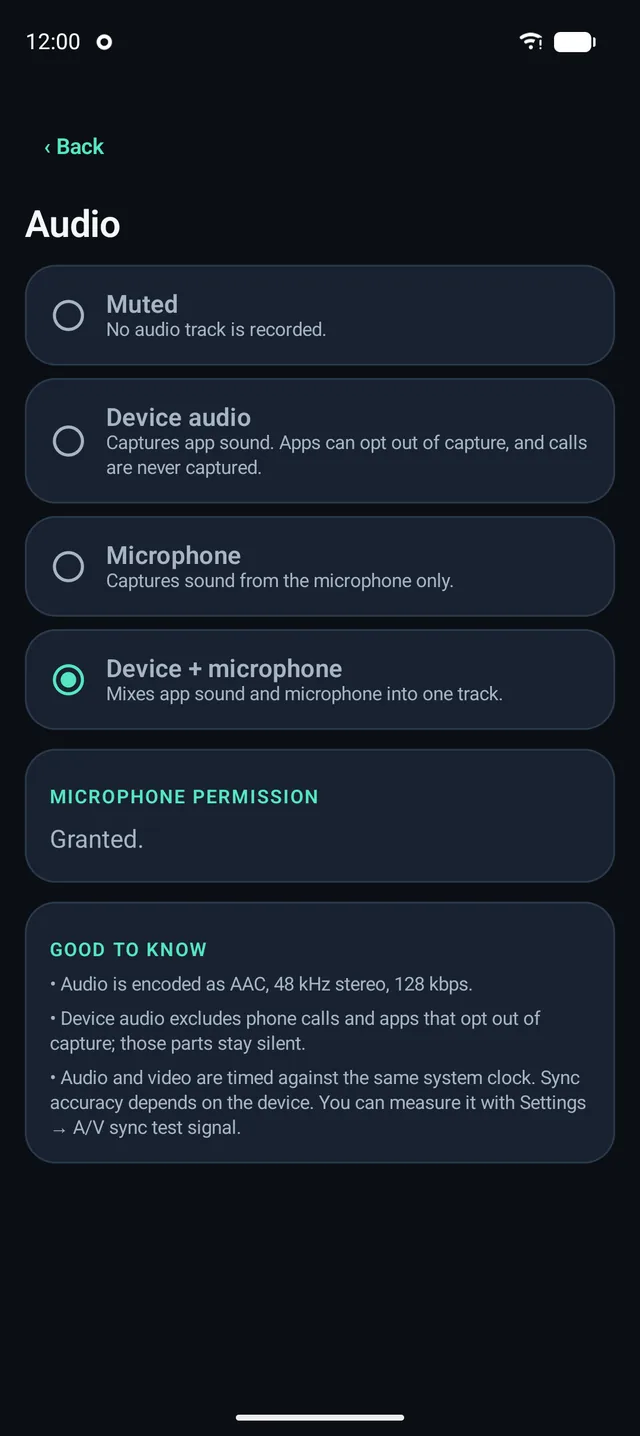
Record what you hear, what you say, or both, with audio and video kept on one timeline.
- Device audio, when permittedUses Android's audio playback capture (Android 10+).
- MicrophoneNeeds your permission, and is only used while recording.
- Combined audioMix device audio and microphone into a single AAC track.
- Audio and video alignmentBoth are timestamped against the same system clock. Accuracy depends on the device, so the app includes a sync test signal you can measure yourself.
Android limits what can be captured. Some apps opt out of audio capture, and phone calls and protected content are never captured, so a recording can be silent for those sources.
Reliability
Built for Recording You Can Trust.
- Clear statusRecording, paused and saving are always visible, in the app and in the notification.
- Storage awarenessSee free space and estimated time left. Recording saves and stops automatically below a limit you choose.
- Careful file finalisationRecordings are written as hidden pending files, verified as playable, then published. A failed recording is discarded, not left half-written.
- Honest errorsWhen something goes wrong, you get the reason and what to try next.
- Session handlingStopping from Android's system controls, declined permissions and storage problems are all handled.
No recorder can promise success on every device or recovery after a crash or power loss, and CaptureRec doesn't.
Privacy
Your Recordings Stay Yours.
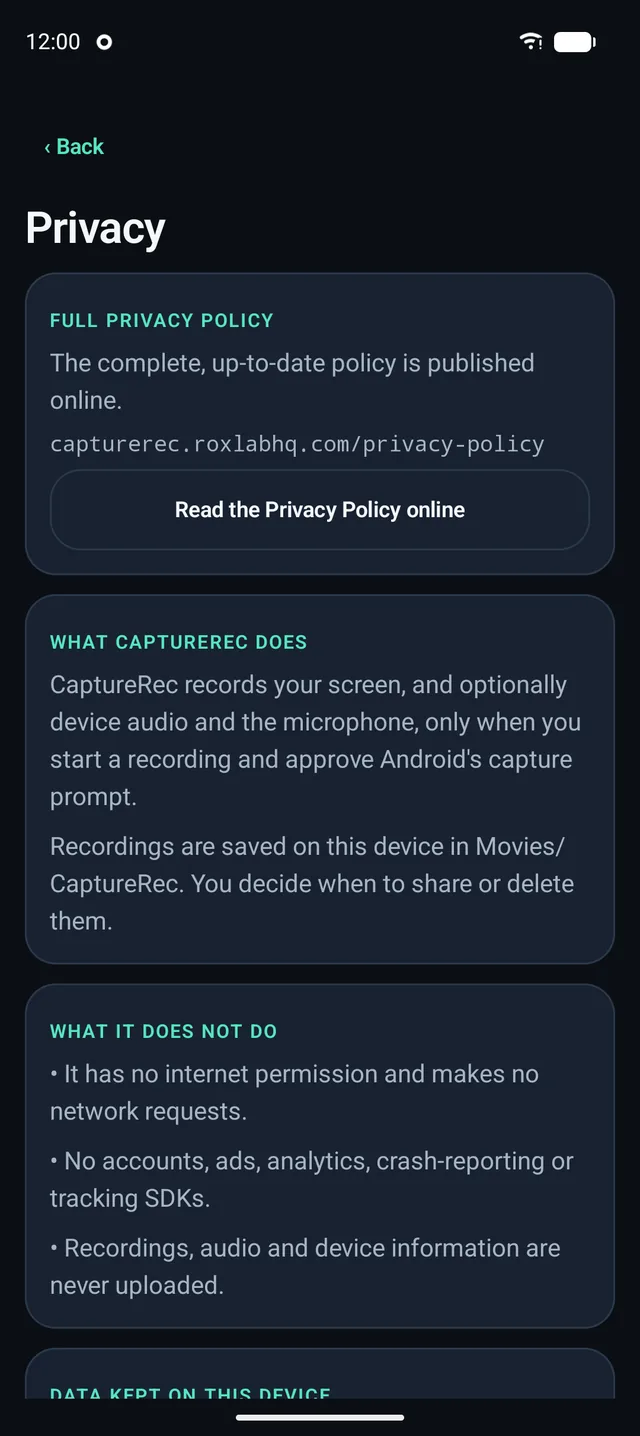
CaptureRec is designed around on-device recording, without requiring an account or cloud processing for its core functionality.
- No accountNothing to sign up for or log in to.
- No backend for recordingThe app declares no internet permission, so it cannot upload your recordings.
- No advertising or analytics SDKNone is included.
- Stored on your deviceRecordings are saved to Movies/CaptureRec. You decide when to share or delete them.
- Android stays in chargeScreen capture needs your approval every time, and the microphone needs your permission.
capturerec.roxlabhq.com/privacy-policy
One-time purchase
One Purchase. Yours to Use.
CaptureRec is a paid app: buy it once on Google Play and it is yours, with nothing recurring.
Coming to Google Play
CaptureRec is not on Google Play yet. This page will link directly to the listing when it is live.
Price and availability are shown on Google Play and can vary by country.
FAQ
Questions, answered plainly.
What is CaptureRec?
CaptureRec is an Android screen recorder built around recording quality and control. You choose resolution, frame rate, bitrate, codec and audio source, and the app only offers settings your device's video encoder reports it can handle. Recordings are saved as MP4 files on your device.
Which Android devices are supported?
CaptureRec requires Android 10 (API level 29) or newer, because device-audio capture is only available from that version.
What you can actually record varies by phone and Android version: the encoders, the display and the OS all set the limits. The in-app Encoder Lab shows what your device reports and what has been tested on it.
Can CaptureRec record at 4K?
Only if your device can. CaptureRec reads the sizes your encoder supports and disables the rest, so a 4K option appears only where the hardware reports it. It never upscales a lower-resolution capture and calls it native. Many devices will record at a lower resolution than their screen.
Does CaptureRec support 60 FPS or 120 FPS?
60 FPS is offered where both the encoder and the display support it, and higher rates only where they are reported. Unsupported frame rates stay disabled, with the reason shown. We don't promise 120 FPS on any device.
The frame rate is a target, not a guarantee: Android delivers a new frame when the screen changes, so a static screen produces fewer frames. CaptureRec shows the measured output rate for your recordings.
Can it record internal audio?
Yes, on Android 10 and newer, using Android's audio playback capture. Android lets apps opt out of being captured, and phone calls and protected content are never captured, so some apps will record silent. That is an Android restriction, not something CaptureRec can bypass.
Can it record microphone audio?
Yes. Choose Microphone, or Device + microphone to mix both into one track. Android asks for microphone permission the first time, and the microphone is only used while you are recording.
Does the floating toolbar or Facecam need extra permissions?
Only if you turn them on. The toolbar needs Android's "Display over other apps" permission, and Facecam needs camera permission. CaptureRec asks at that moment, with an explanation, and not at first launch. Screen capture still needs your approval in Android's own prompt every time you record.
Can I edit my recordings?
Yes. Video Studio trims, splits and joins clips, crops and rotates, changes speed per clip, adds text and background audio, and exports a new MP4. Your original recording is never changed. Editing and exporting happen on your device, and export sizes are limited to what your phone's encoder supports.
Does it require an account?
No. There is no sign-up, no login and no profile. Install it and record.
Does it upload my recordings?
No. The app does not declare Android's internet permission and has no server to upload to. Recordings stay on your device in Movies/CaptureRec until you share or delete them. If you choose Share, the recording goes to the app you pick, under that app's rules.
Is CaptureRec a subscription?
No. It is planned as a one-time purchase through Google Play, with no subscription, no advertising and no in-app purchase unlocks. Price and availability are set in Google Play and can vary by region.
Where can I read the Privacy Policy?
The full policy is at capturerec.roxlabhq.com/privacy-policy.
Make Every Recording Count.
Discover a cleaner, more controlled way to record your Android screen.
Coming to Google Play